
Do you want to embed RSS feed on Wix website then follow the below mentioned steps to add Wix RSS Feed on your website using RSS Widget powered by Tagembed.
Step 1
Create your Free account or login to your existing account.

Step 2
In the dashboard you’ll see a widget, click on Open button.

Step 3
A list of social networks will appear, select RSS from the list.

Step 4
Enter the input accordingly and click Create Feed button
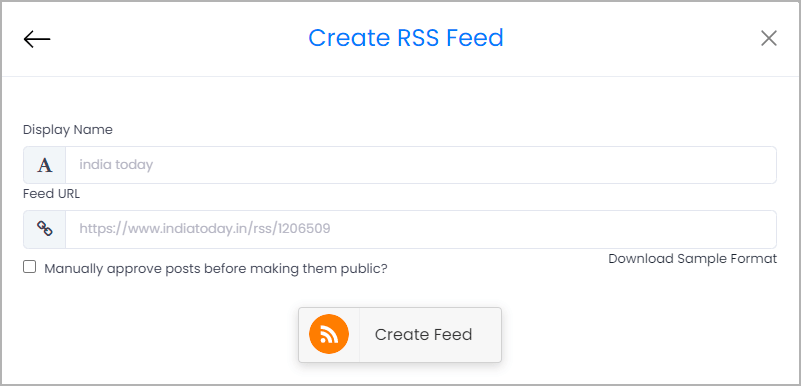
Step 5
Your RSS Feed Widget will be created and all of the RSS feeds will be collected in the widget.
Now click on the Embed Widget button.

Step 6
A choose your platform named pop-up will appear, from the list choose your website CMS and proceed:

Step 7
Set height & width of the widget and click on the copy code button to copy the RSS Feed embed code.
Now Login to your website admin panel and paste the embed code in your desired webpage. Save the changes made.
Hence, RSS Feed will be embedded on your website and will be visible to all of your visitors.
Also Read – Things to Know Before You Publish Your YouTube Video
Also Read – Embed Youtube Shorts on Website
 WidgetBox