Significant changes are happening on Pinterest. And no matter how new these changes are, pinners adapt.
One of the significant changes Pinner went through recently is Story Pins. Pinterest Story allows up to 20 pages of photos, videos, and text. And with time Story Pins have become a great way for businesses to showcase amazing content. As a result, many businesses are also opting to embed Pinterest Stories on website.
Pinterest stories helps them to share quick tips, and recipes with their website visitors. just like Instagram and Snapchat stories, Pinterest also introduced a Story feature. But here is the catch, unlike Instagram and Snapchat stories, Pinterest stories do not disappear after 24 hours.
If you are looking for the best way to embed Pinterest Stories on website, you have landed in the right place.
Follow the following step-by-step guide to embed Pinterest stories on the HTML website successfully.
Try Tagembed – Create Your Free Account Now
Step 1: Aggregate Pinterest Stories
1. Sign Up to create a Free Tagembed Account or Login if you already have an account.

2. You’ll be redirected towards the Tagembed dashboard.

3. Your First Widget will be already created, just click on the Open button to proceed.

4. A screen “Pick a source” will appear, here you have to go to Story Widget section and choose Pinterest Stories.

5. Now Enter the Handle name of the user from where you want to aggregate stories from.

6. Finally, click on the Create Feed button to start aggregation.
Tip: You can click on the Personalize tab on the left menu panel to change the themes & layout, background, banners and other dedicated themes settings to make the widget look more appealing and attractive.
Step 2: Generate Embed Code to Add Pinterest Stories on Website
1. On the bottom-left menu panel, click on the Embed Widget button.

2. A new screen “Choose Your Platform” will appear with the list of different website CMS.

3. Choose HTML as your website CMS and adjust the height & width of your widget.
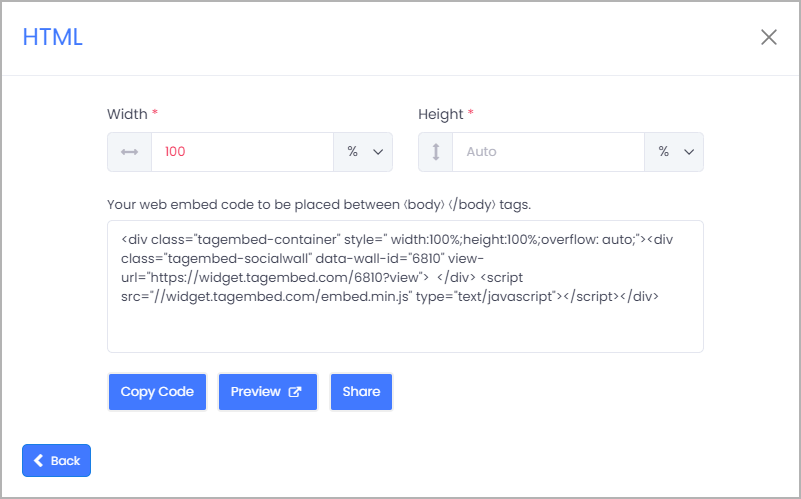
4. Click on the Copy Code button to copy the embed code.
Step 3: Embed Pinterest Stories on Website
After copying the embed code follow few more clickable steps to complete the embedding process.
1. Login to the admin account of your HTML website
2. Navigate to the page where you want to embed Pinterest Stories.
3. Paste the embed code into the body tag.
4. Save the changes made and reload the page.
Hence, your webpage is loaded with new added Pinterest Stories.
Kudos! You have successfully embedded Pinterest Stories on your HTML website.
Read more: Pinterest Widget for Website
Read more: Embed Pinterest Board on Website
Try Tagembed – Create Your Free Account Now
Still have questions or need help, please Contact Us or write us at support@tagembed.com
 WidgetBox